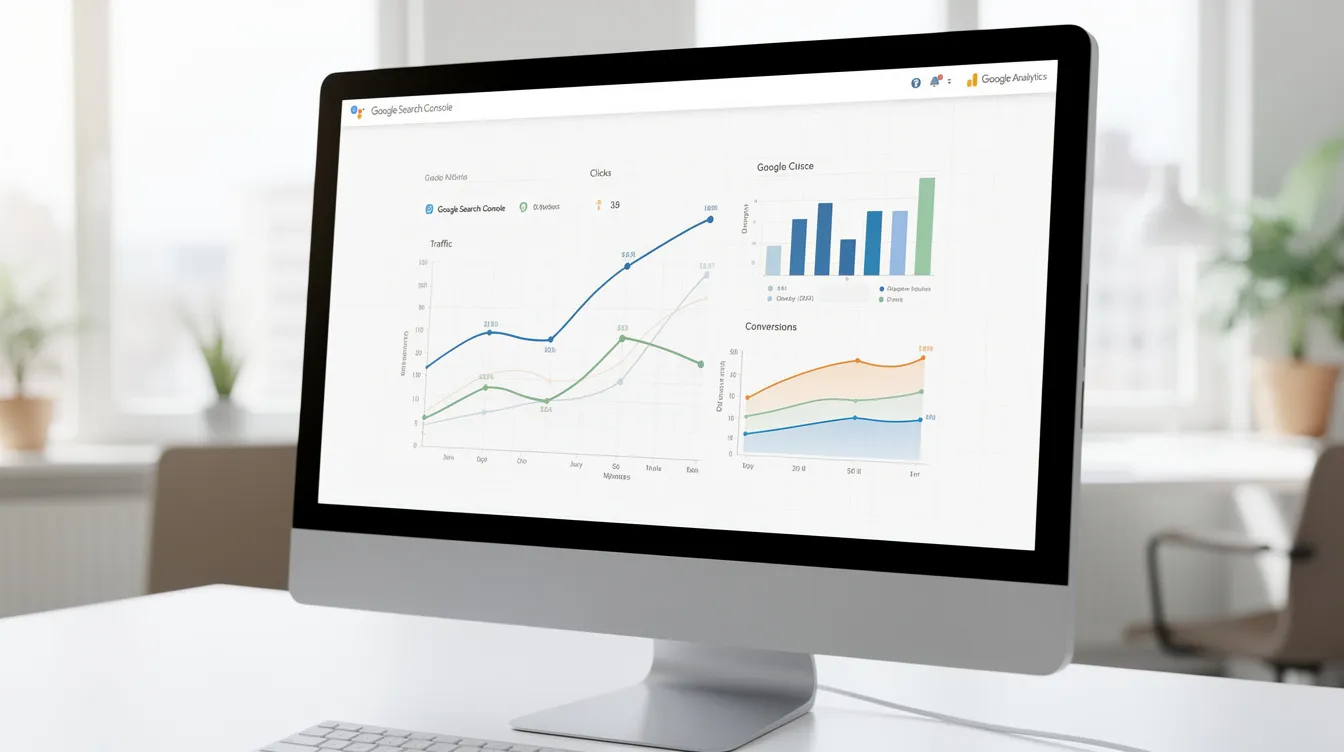
Google Search Console integration connects your website's raw search performance data with other analytics and marketing platforms. This allows you to see the full user journey, from the exact search query a user typed into Google to their behavior and conversions on your website, all in one place.
What Is Google Search Console and Why Is Integration Essential?
Google Search Console (GSC) is a free service from Google that helps you monitor, maintain, and troubleshoot your site's presence in Google Search results. It provides vital data on how Google sees your site, including the search queries people use to find you, your site's click-through rate (CTR), and any crawling or indexing errors.
On its own, GSC is powerful for understanding pre-click performance. However, its true value is unlocked when integrated with post-click analytics platforms like Google Analytics. This connection merges what happens on the search results page with what happens on your website, creating a single, actionable view of your organic marketing efforts.
How to Integrate Google Search Console with Google Analytics (GA4)
The most fundamental integration is linking GSC with Google Analytics 4. This populates GA4 with organic search query and performance data, making it a central hub for analysis.
Prerequisites:
- You must have "Admin" permissions for the Google Analytics 4 property.
- You must be a verified owner of the Search Console property.
- The email address used for both accounts should be the same for seamless authentication.
Step-by-Step Instructions:
Navigate to Admin: Log in to Google Analytics 4 and click the
Admingear icon in the bottom-left corner.Find Product Links: In the
Propertycolumn, scroll down toProduct Linksand click onSearch Console Links.[Image: Screenshot of the GA4 Admin panel with the 'Search Console Links' option highlighted in the Property column.]Initiate the Link: In the link setup table, click the blue
Linkbutton.Choose Your GSC Property: A new window will appear. Click
Choose accountsto see the GSC properties you own. Select the correct one and clickConfirm.Select Your Web Stream: Click
Next, thenSelectto choose the appropriate web data stream for your website.[Image: Screenshot of the GA4 linking flow showing the selection of a web data stream after choosing a GSC property.]Review and Submit: Review your selections to ensure the GSC property and GA4 web stream are correct. Click
Submitto finalize the connection.
Once linked, it can take up to 48 hours for data to appear. The new reports will be available in your GA4 Reporting section, often added automatically to the library.
3 Actionable Analyses to Run with Your Integrated Data in GA4
Connecting the platforms is just the start. The next step is analysis. Navigate to Reports > Library in GA4. If you don't see the Search Console reports, you can publish them from the library. Once available, here are three high-impact analyses to run.
[Image: Screenshot of the GA4 report library showing the Search Console card with a 'Publish' button.]
Identify High-Ranking, Low-CTR Pages: Open the
Google organic search queriesreport. Sort byAverage position(ascending) to see your best-ranking queries. Now, look at theCTRcolumn. Are there queries ranking in positions 1-10 with a CTR below the expected average? This is a prime opportunity for title tag optimization. A more compelling title can drastically increase clicks without any change in ranking.Find "Striking Distance" Keywords: In the same report, filter
Average positionto be between 11 and 20. These are your "striking distance" keywords—pages ranking on the second page of Google. They have proven relevance but need an extra push. Sort this filtered list byImpressions(descending) to find the pages that would benefit most from a content refresh, internal linking campaign, or targeted backlink building to push them onto the first page.Correlate Queries with On-Site Engagement: Add a comparison to the report. Compare your top organic queries based on
Engagement rateorConversions. You might find that some high-traffic queries have a very low engagement rate, indicating a mismatch between searcher intent and your landing page content. Conversely, you might discover lower-traffic queries that convert exceptionally well, suggesting you should create more content around that specific subtopic.
Integrating GSC with Third-Party Platforms
Beyond GA4, integrating GSC with specialized platforms can automate workflows and connect search performance to business outcomes.
HubSpot: Connecting SEO to the Customer Journey
Integrating GSC with HubSpot allows you to see how organic search performance impacts your entire marketing and sales funnel. You can track which keywords and pages generate not just traffic, but also leads, marketing qualified leads (MQLs), and even closed-won deals within the HubSpot CRM. This provides a true ROI for your content efforts.
Plausible Analytics: Privacy-First Insights
Plausible is a lightweight, privacy-focused web analytics alternative to Google Analytics. Its GSC integration pulls your top search queries directly into the Plausible dashboard, allowing you to see traffic sources and search terms in one simple interface without the complexity of GA4.
Content Optimization Platforms
Tools in this category use GSC data to fuel content strategy. Platforms like SurferSEO and Clearscope use it to identify content decay and suggest updates. Similarly, automation tools use this data to take action. For instance, PilotScribe tracks Google Search Console performance and automatically rewrites the titles of pages that rank but get few clicks, turning a manual analysis task into an automated optimization cycle.
Building a Unified Dashboard with BI Tools
For a holistic view, you can pull GSC data into Business Intelligence (BI) platforms like Looker Studio or Power BI, often using a connector like Supermetrics. This allows you to build a single dashboard that visualizes data from multiple sources.
A powerful BI dashboard might combine:
- GSC Data: Clicks, Impressions, CTR, Average Position
- GA4 Data: Sessions, Engagement Rate, Conversions
- CRM Data: Leads Generated, MQLs, Deal Value
- Ad Platform Data: Ad Spend, Cost Per Click
This unified view is superior to checking individual platforms because it reveals the relationships between different channels and metrics. You can instantly see how a drop in organic rankings impacts lead generation or how an increase in paid search spend affects organic CTR.
[Image: A Looker Studio dashboard combining GSC impressions and CTR with GA4 conversion rates in a time series chart.]
Leveraging the Google Search Console API
For ultimate flexibility, the GSC API allows for programmatic access to your data. This is ideal for developers building custom tools, agencies creating automated client reports, or large sites performing analysis at scale.
You can use client libraries to simplify the process. Here’s a basic Python snippet using Google's official library to fetch query performance data:
from googleapiclient.discovery import build
from google_auth_oauthlib.flow import InstalledAppFlow

# Set up OAuth 2.0 credentials
flow = InstalledAppFlow.from_client_secrets_file('client_secrets.json', scopes=['https://www.googleapis.com/auth/webmasters.readonly'])
credentials = flow.run_local_server(port=0)

# Build the service object
webmasters_service = build('webmasters', 'v3', credentials=credentials)

# Define the request
request = {
    'startDate': '2025-12-01',
    'endDate': '2025-12-31',
    'dimensions': ['query'],
    'rowLimit': 10
}

# Execute the request
response = webmasters_service.searchanalytics().query(siteUrl='https://www.yourdomain.com/', body=request).execute()
print(response)
A practical use case is to automate the discovery of pages with high impressions but low CTR. A script could run weekly, pull data for all pages with >1,000 impressions, filter for those with a CTR <2%, and send an alert or add them to a spreadsheet for content review.
Troubleshooting Common Integration Issues
Why GSC and GA4 Clicks Don't Match
It's a common point of confusion, but it's normal for click counts in GSC and session counts in GA4 to differ. This is due to fundamental differences in how data is collected:
| Factor | Google Search Console (GSC) | Google Analytics 4 (GA4) |
|---|---|---|
| Measurement Point | Measures clicks on a Google search result (pre-site). | Measures sessions when a user lands on your site and the tracking code fires. |
| JavaScript | Records a click regardless of what happens next. | Requires JavaScript to be enabled in the user's browser to record a session. |
| Filtering | Filters out some bot clicks based on Google's internal methods. | Filters bots and internal traffic based on your configured settings. |
| Data Aggregation | Data is grouped by query, page, country, and device. | Data is session-based and can be segmented by many more dimensions. |
| Attribution | Only reports clicks from Google organic search. | Attributes sessions to the last non-direct click by default. |
Think of GSC as measuring search intent and GA4 as measuring website behavior. A user might click your link (1 GSC click) but close the tab before the GA4 tag fires (0 GA4 sessions). Another might click, land on the site, leave, and return via a direct URL later (1 GSC click, 2 GA4 sessions, with the second attributed to 'Direct').
FAQ
How to integrate Google Search Console?
To integrate Google Search Console, the most common method is linking it to Google Analytics 4 via the 'Product Links' section in the GA4 Admin panel. You can also integrate it with third-party tools by authorizing access within their platform settings, or use the GSC API for custom development.
Does the Google Search Console have an API?
Yes, Google Search Console has a robust API that allows developers and applications to programmatically access search performance data, manage sitemaps, and check URL indexing status. This is used for building custom dashboards and advanced integrations.
Is the Google Search Console still a thing?
Yes, absolutely. Google Search Console is a fundamental, free, and indispensable tool for website owners, marketers, and SEO professionals. It provides direct, first-party data from Google about your website's health and performance in search results.
Can I see if anyone has googled me?
You cannot see if a specific person has searched for your name. Google Search Console shows anonymized, aggregated data about the search queries that led users to click on your website. You can see what people searched for to find your site, but not who they are or their individual search history.