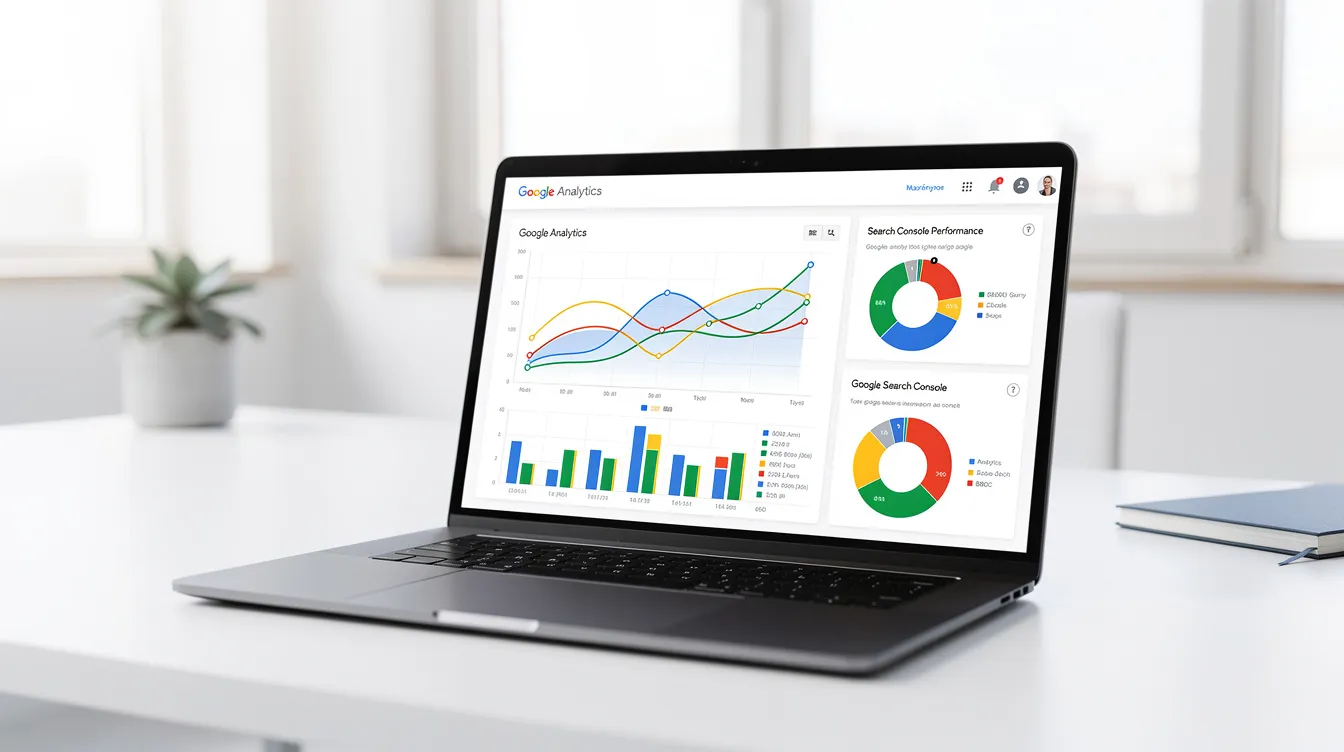
Connecting Google Analytics 4 (GA4) with Google Search Console (GSC) unlocks a full-funnel view of your SEO performance. This integration pipes crucial pre-click data—like search queries and rankings—directly into GA4, allowing you to analyze it alongside post-click user behavior and conversions.
Why Integrate Search Console with Google Analytics?
You should integrate the two platforms to move beyond surface-level metrics and diagnose your entire organic search funnel. GSC shows you what happens on Google (impressions, clicks, position), while GA4 shows you what happens on your site (engagement, conversions). Combining them is the only way to connect search performance to business outcomes.
This connection empowers you to:
- Pinpoint Valuable Queries: Finally see which actual search terms lead to engagement and conversions, moving past the "(not provided)" keyword data in standard reports.
- Optimize Your Content Strategy: Identify pages that rank well but fail to engage users, or pages with high engagement from unexpected keywords.
- Fix High-Impression, Low-CTR Pages: Find content that Google shows frequently but users don't click on—a clear signal that your title or meta description needs improvement.
- Validate Keyword Targeting: Confirm that the keywords you're targeting for a specific page are the ones actually driving its traffic and conversions.
How to Link Google Search Console to Google Analytics 4
Linking the services is a quick, one-time setup in the GA4 admin panel. Before starting, ensure you have the required permissions: you need an 'Editor' role for the GA4 property and must be a 'Verified owner' of the GSC property you wish to connect.
Here are the step-by-step instructions:
Navigate to GA4 Admin: Log in to your Google Analytics account and click the 'Admin' gear icon in the bottom-left corner.
(Image: A screenshot of the Google Analytics 4 interface with an arrow pointing to the 'Admin' gear icon in the bottom-left.)
Find Product Links: In the 'Property' column, scroll to the 'Product Links' section and click 'Search Console Linking'.
Initiate the Link: On the next screen, click the blue 'Link' button in the top-right corner.
Choose a GSC Property: A panel will appear. Click 'Choose accounts' to see a list of GSC properties you own. Select the correct one and click 'Confirm'. If your property is missing, it's almost always a permissions issue—ensure you're logged in with the same Google account that owns the GSC property.
Select Your Web Stream: Click 'Next'. Now, click 'Select' to choose the corresponding GA4 web data stream for your website. Your site's URL should be visible. Select it and click 'Next'.
(Image: A screenshot of the GA4 linking flow, showing the user selecting a web data stream that matches their Search Console property.)
Review and Submit: The final screen shows a summary of the GSC property and GA4 web stream you're about to connect. Review them carefully and click 'Submit'.
You'll get a "Link created" confirmation. Within 48 hours, new reports will become available as data begins to populate.
How to Use Integrated Data: The Content Performance Audit
With data flowing, you can move beyond simple reporting and conduct a high-impact content audit. This structured approach helps you systematically find and fix underperforming content.
First, enable the new reports. Go to Reports > Library > find the "Search Console" card and click the three dots to 'Publish' it. It will now appear in your left-hand navigation.
Step 1: Identify High-Potential Pages
Navigate to the Reports > Search Console > Google organic search traffic report. We are looking for pages with one of two problems:
- Low CTR: High impressions, but low clicks. Your title/meta isn't compelling.
- Striking Distance: Ranks on page two (positions 11-20). A small push could yield big results.
Add a filter to find these pages. Click 'Add filter', and set the following conditions:
- Dimension:
Average position| Match type:Greater than| Value:10 - Dimension:
Impressions| Match type:Greater than| Value:1000(adjust based on your site's traffic)
(Image: An annotated screenshot of the GA4 Organic Search Traffic report. A filter is applied showing Average Position > 10 and Impressions > 1000. An arrow points to a specific landing page in the filtered results with high impressions but low clicks.)
This filtered list is your optimization priority list. Pick one page to analyze further.
Step 2: Diagnose the "Why"
Click on the landing page you identified. Now, add 'Query' as a secondary dimension. This shows you all the queries driving impressions to that single page.
You're looking for a mismatch. For example, your page might be titled "The Best Project Management Software for Small Teams," but the top query driving impressions is "free project management tools." Your page gets shown but not clicked because the title doesn't align with the user's primary intent (finding something free).
Step 3: Rewrite and Relaunch (with an Example)
Let's say your audit surfaced a blog post, /best-crm-for-startups, with high impressions but a low 1.5% CTR for the query "simple crm for sales team."
- Original Title:
The 10 Best CRMs for Startups in 2026 - Insight: The query shows users want simplicity and are focused on sales. The current title is generic.
- New Title:
10 Simple CRMs for Sales Teams (Startup-Friendly Picks) - New Meta Description:
Tired of complex CRM software? We reviewed the top 10 simple CRMs designed to help your sales team close deals, not fight with software. Get started fast.
The new versions directly address the user's intent revealed by the GSC data. After updating, use GSC's 'URL Inspection' tool to request re-indexing and monitor performance over the next few weeks.
This manual audit is a powerful quarterly exercise, but tracking these opportunities at scale is challenging. This is where automation becomes essential. Tools like PilotScribe are designed to run this diagnostic continuously. By connecting to your website, PilotScribe analyzes ranking performance to find these opportunities, then rewrites weak titles and refreshes fading posts automatically to push them up the rankings. It turns the insights from this audit into an automated growth engine.
Common Issues and Data Discrepancies
After linking the accounts, you may notice that numbers don't perfectly align. This is normal and usually explainable.
| Issue | Common Reason(s) | How to Interpret It |
|---|---|---|
| Clicks (GSC) ≠ Sessions (GA4) | GSC counts any click to your domain. GA4 only counts sessions after the tracking code loads. Clicks from users with JavaScript disabled, or who bounce instantly, may not become sessions. | GSC clicks are a measure of search performance; GA4 sessions are a measure of site traffic. Expect GSC clicks to be slightly higher. |
| (other) row in reports | Google applies data thresholding for privacy. If a query has very low search volume, it's grouped into an '(other)' category to prevent identifying individual users. | This is a privacy feature. You can't see these long-tail queries, so focus your analysis on the higher-volume terms that are visible. |
| Landing page data differs | GSC assigns all metrics to the canonical URL Google chose. GA4 assigns metrics to the actual URL the user landed on (e.g., with or without 'www', or with UTM parameters). | For official SEO reporting on rankings, trust the GSC data. For user behavior analysis, use the GA4 data. |
If you want to go deeper, you can use GSC dimensions like 'Google organic search query' in GA4's 'Explore' reports to build custom funnels and segmentations that aren't possible in the standard reports.
FAQ
Why don't clicks in Search Console match sessions in Google Analytics?
Clicks in GSC and sessions in GA4 are different metrics. A 'click' is recorded the instant a user clicks your link on Google, while a 'session' only starts after the user lands on your site and the GA4 tracking code executes. Users who click but leave before the page loads, or those with JavaScript disabled, will be counted as a click but not a session, causing GSC clicks to almost always be higher.
What is data thresholding in GA4's Search Console reports?
Data thresholding is a privacy protection measure. When a search query is used by a very small number of users, Google groups it into a row labeled '(other)' to prevent you from potentially identifying an individual user. This means you won't be able to see every single long-tail keyword that brings you traffic, but it protects user privacy.
How can I use GSC data in GA4 Explorations?
In GA4, go to the 'Explore' section and create a new Free-form exploration. In the 'Dimensions' column, import 'Google organic search query' and 'Landing page + query string'. You can then combine these with any GA4 metrics (like 'Conversions', 'Engaged sessions') to build highly customized reports that show exactly which search terms lead to valuable user actions on specific pages.